
Improve Your Website Insights: Set Up Google Analytics in Under 15 Minutes
Getting your head around who’s visiting your website and what they’re actually doing when they get there all starts with Google Analytics. The setup is pretty straightforward: you create what’s called a GA4 property, grab a tracking ID, and pop a small bit of code onto your website. That’s it. In return, you get a flood of incredibly useful data about your audience.
Why Google Analytics Is Your Business’s Secret Weapon
Ever find yourself wondering which of your services gets the most eyeballs from potential customers in Edinburgh? Or if that Facebook ad you’re running in West Lothian is actually sending people your way? These aren't just shots in the dark; they're questions that data can answer, and Google Analytics is the tool that hands you those answers for free.
Think of it as your digital detective, working quietly in the background to gather anonymous information about your website visitors. This isn’t just about counting clicks; it’s about understanding the story behind them.
Turning Raw Data Into Smarter Decisions
Without analytics, you’re basically just guessing. With it, you can make informed choices that have a real impact on your business.
- Spot Your Greatest Hits: Find out which pages or blog posts are keeping visitors hooked the longest. This is gold dust, telling you exactly what kind of content to create more of. Our own guide on general web design tips shows how this kind of user insight can lead to much better site layouts.
- See What Marketing is Actually Working: Pinpoint exactly where your traffic is coming from—whether that’s Google searches, social media, or local business directories. This tells you which marketing channels are worth your time and, more importantly, your money.
- Get to Know Your Audience: Learn more about your visitors, like where they’re based and what devices they’re using to browse your site. This is absolutely vital for a local business in West Lothian trying to connect with the right community.
The latest version, Google Analytics 4 (GA4), is built for the modern world. It understands that a customer's journey isn't always a straight line and has a big focus on respecting user privacy. Once you’re set up, you can start digging into powerful B2B marketing analytics strategies for even deeper insights.
It's a surprisingly accessible tool, especially for smaller businesses. In fact, around 72% of UK businesses that use Google Analytics have fewer than 10 employees, which just goes to show how valuable it is, even if you’re a one-person operation.
Create Your GA4 Account and Property
Right, first things first. Before you can get all this juicy data about your website visitors, you need to give it a home. This means setting up a Google Analytics account and then what’s called a "property" inside it.
Think of the account as the main filing cabinet for your business, and the property as the specific folder for your website. It’s a simple but important distinction.
To kick things off, head over to the Google Analytics site. If you’ve already got a Google account for your Edinburgh or West Lothian business – maybe for Gmail or your Google Business Profile – use that to sign in. It just keeps everything tidier and under one roof. Google does a decent job of guiding you through the setup, but a few details need your full attention right from the start.
Nailing the Setup Details
During the initial setup, you'll be asked for some basic info. It might seem trivial, but getting this right from the get-go is vital because it forms the very foundation of all your future reports.
- Account Name: Keep it obvious. If you run a plumbing business in Livingston called "Livi Plumbers," then "Livi Plumbers" is the perfect account name. Simple.
- Property Name: This should be your website's name. Something like
liviplumbers.co.ukworks perfectly. - Reporting Time Zone & Currency: This one’s crucial. Make sure you set it to United Kingdom (GMT) and British Pound (GBP). This ensures your reports make sense for your actual business hours and sales figures.
Seriously, take a moment to double-check the time zone. If it’s wrong, your data will be skewed, making it look like you get a surge of visitors at 3 AM. It’s a common mistake that causes a lot of confusion down the line, so let's get it right now.
Next up, Google will ask you to create your first Data Stream. This sounds technical, but it’s just the pipeline that lets data flow from your website into your new GA4 property.
Here’s what to do:
- Choose 'Web' as your platform. Easy.
- Pop in your website's URL (e.g.,
www.yourbusiness.co.uk). - Give the stream a clear name, like "[Your Business Name] Website Stream".
Once that's done, you’ll land on a page showing all the measurement details for your new data stream.
This screen is your command centre for data collection. See that Measurement ID that starts with "G-"? That's the golden ticket. You're going to need that for the next part, where we actually connect your website to Analytics. Keep it handy.
Install the Google Analytics Tracking Code
Right, so you've got your new GA4 property set up. Now we need to actually connect it to your website so it can start pulling in all that juicy visitor data.
This means adding a small piece of code – a "tag" or "snippet" – to your site. For most West Lothian and Edinburgh businesses, there are a couple of straightforward ways to go about this.
Your main choice boils down to using Google Tag Manager (GTM) or just adding the code directly to your website. GTM is a fantastic tool that acts as a central hub for all your tracking scripts, giving you heaps of flexibility down the line. But honestly, if you're just starting out, the direct method is often quicker.
Choosing Your Installation Method
If you're using a popular platform like WordPress or Shopify, you're in luck. The process is dead simple thanks to dedicated plugins.
Here’s a quick rundown of your options:
- Using a Plugin (The Easiest Route): Most website platforms have plugins that do the heavy lifting for you. All you typically have to do is find the right one, install it, and then pop in your Measurement ID (that's the "G-" number we found earlier). Simple as that.
- Adding Code Directly to Your Site's HTML: This involves copying the tracking code snippet from Google Analytics and pasting it into the
<head>section of your website's code. If the thought of editing code makes you break out in a cold sweat, this is probably a job for your web developer. - Using Google Tag Manager (The Pro Method): This is the path I'd recommend if you think you'll be adding other tracking codes in the future, like for Facebook Ads. You install the GTM code on your site once, and then you can manage your GA4 tag (and any others) from inside the GTM interface without ever touching your website's code again.
This infographic gives you a simple visual of where the tracking code actually sits within your site's HTML.
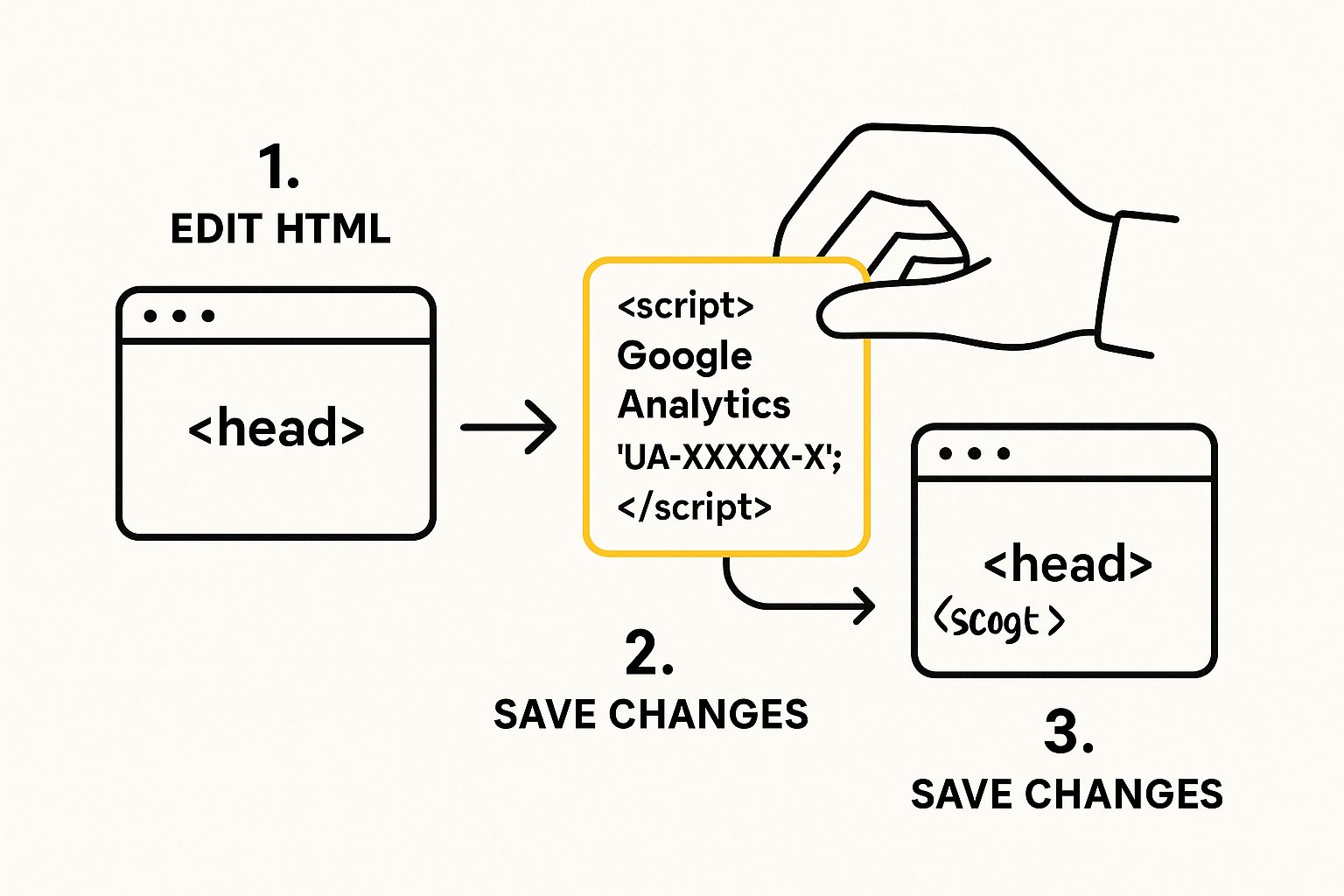
As you can see, the Google Analytics snippet just slots neatly into the <head> section of your code. This ensures it loads on every single page, which is critical for accurate tracking.
No matter which method you pick, the end goal is exactly the same: get your unique tracking code onto every page of your website. This is the magic that allows Google Analytics to see and report on everything your visitors do.
Getting this right has become even more crucial since Google made the switch to GA4 mandatory. The move away from the old Universal Analytics was a big shift for UK businesses, bringing web analytics more in line with modern data privacy standards. GA4's whole model is built to be more respectful of user privacy and compliant with regulations, which is a key consideration for any local business. You can read a bit more about what Google Analytics 4 means for UK businesses on Redirectory.co.uk.
Ultimately, if your website is built on a platform like WordPress, just start with a plugin. It’s the fastest and safest way to get your tracking code installed correctly without having to mess around with any code yourself.
Check It's Working and Get to Grips with Your First Reports
So, you've got the tracking code installed. The big question is, is it actually working?
There's a genuinely satisfying moment when you see your own visit pop up in Google Analytics for the first time. It's the ultimate confirmation that everything is connected and collecting data.
Here's how to check.
- Open your website in a new browser tab.
- Now, head back over to your Google Analytics dashboard.
- On the left-hand menu, go to Reports > Realtime.
Give it a minute. You should see a little blip appear on the map, likely pinpointing your general location right here in West Lothian or Edinburgh. That’s you!
Seeing that first bit of data trickle in means the connection is live. Now you can start digging into the reports that will actually give you some proper insight into your business.
Your First Look at Essential GA4 Reports
Don't let the sheer number of reports overwhelm you. At the start, it's best to focus on just a few key areas to get a feel for how your website is performing. These reports are the bedrock for understanding who your visitors are and how they're finding you online.
If you really want to make the most of your data, it helps to understand the core principles behind a good business intelligence dashboard, as this is essentially what you're starting to build.
Here are the must-know reports to get you started:
- Acquisition Report: This is your go-to for seeing where your website traffic is coming from. It breaks down visitors by their source, like Organic Search (people finding you on Google), Direct (typing your URL straight in), and Social. It’s brilliant for figuring out which of your marketing efforts are actually bringing people to your door.
- Engagement Report: This one tells you what people do once they land on your site. It tracks things like how long they stick around and which pages they visit the most. High engagement is a massive clue that your content is hitting the right notes with your audience.
- Demographics Report: Fancy a clearer picture of who your audience is? This report gives you anonymous data on visitor age, gender, and location. It's incredibly useful for refining your messaging so it really connects with your local customers.
It's vital to get your head around the difference between Users, Sessions, and Events. Think of it like this: a 'User' is a unique visitor. A 'Session' is a single visit they make. An 'Event' is a specific action they take during that visit, like clicking a button or watching a video.
Fine-Tune These Essential Settings Next
Getting Google Analytics on your site is a brilliant first step, but a few extra tweaks will turn it from a simple counter into a genuinely powerful business tool. Taking a few minutes now to refine the settings means the data you collect will be clean, accurate, and ready to actually inform your decisions.
First things first: you need to filter out your own team's activity. If you and your staff are constantly on your site from the office in Livingston or your home in Edinburgh, those visits will inflate your traffic numbers and seriously skew your engagement metrics.
Getting Granular with Your Data Collection
Excluding your own traffic is a simple but absolutely vital tweak. You can pop into your GA4 settings and create a filter that tells Google to completely ignore any visits coming from a specific IP address—namely, your office or home network. It’s a set-and-forget fix that pays dividends.
Here are a few other essential configurations to get sorted right away:
- Link up Google Ads: If you're running any paid search campaigns, linking your Google Ads account to GA4 is non-negotiable. This merges your ad costs and performance data right alongside your website behaviour, giving you a crystal-clear picture of your return on investment. You'll see exactly which ads are driving real results.
- Increase Data Retention: Straight out of the box, GA4 only holds detailed, user-level data for two months. You can—and absolutely should—change this to 14 months. This simple change allows for proper year-on-year comparisons, which is crucial for tracking growth.
- Define Your Conversions: What's the most important action a visitor can take on your website? For most West Lothian businesses, it’s probably submitting a contact form or making a purchase. You need to tell GA4 what these actions are by setting them up as conversions.
Tracking conversions is what transforms Google Analytics from a passive reporting tool into a strategic asset. It allows you to measure precisely which of your marketing channels are generating valuable leads and sales for your business.

This level of tracking is standard practice in competitive sectors. The UK’s retail industry, for example, relies heavily on GA4 to analyse customer journeys and boost sales. You can learn more about how different sectors are using analytics to stay ahead of the curve at Optimo Analytics.
Just remember, collecting user data means you need to be transparent. It's a good time to double-check that your site has a clear privacy policy in place.
FAQs: Your Google Analytics Questions Answered
Diving into Google Analytics for the first time usually throws up a few questions. That's completely normal. Let's run through some of the most common queries I hear from West Lothian and Edinburgh business owners.
Is Google Analytics 4 Really Free?
Yes, it absolutely is. For the vast majority of small and medium-sized businesses, the standard version of Google Analytics 4 is completely free to use. There's a paid version called Analytics 360, but honestly, that's built for massive companies. For a local business, the free version gives you every core feature you'll ever need.
How Long Until I See My Data?
You should start seeing activity almost instantly. Once you've got the tracking code installed correctly, pop over to the 'Realtime' report in your GA4 property. If you visit your own website, you should see your visit show up there within a minute or two. As for the main reports—like your Acquisition and Engagement data—it typically takes 24 to 48 hours for all that information to be fully processed and displayed.
What Happened to My Old Universal Analytics Data?
If you were using the older version of Google Analytics (Universal Analytics or UA), it stopped collecting new data back in July 2023. You can still log in and view your old historical data for now, but think of it as a read-only archive. Crucially, you can't migrate that old data into your new GA4 property. They're built on entirely different measurement models. This is exactly why getting Google Analytics 4 set up correctly from the start is so important.
Do I need a Privacy Policy to use Google Analytics?
Yes. Google's terms of service require you to have a privacy policy that discloses your use of analytics and cookies. It’s a legal requirement in the UK to be transparent about the data you collect from visitors. This is especially important for building trust with your local customers in West Lothian.
If you're stuck on a specific part of your setup or just need some hands-on help, feel free to get in touch with us at Laraworks. We can offer guidance tailored to your local business needs.
At Laraworks Commerce Ltd, we specialise in helping businesses in West Lothian and Edinburgh succeed online. Visit us at https://laraworks.com to see how our web design and SEO services can help you grow.